MettleDeck Documentation
V1.3.1

V1.3.1
MettleDeck
Features:
Languages:
Change in Settings:
1. Name the project
Click the project name at the top of the window to edit the project name.
For a new project: File > New Project when you want a separate project
Switch between locally-stored projects: File > Project Manager
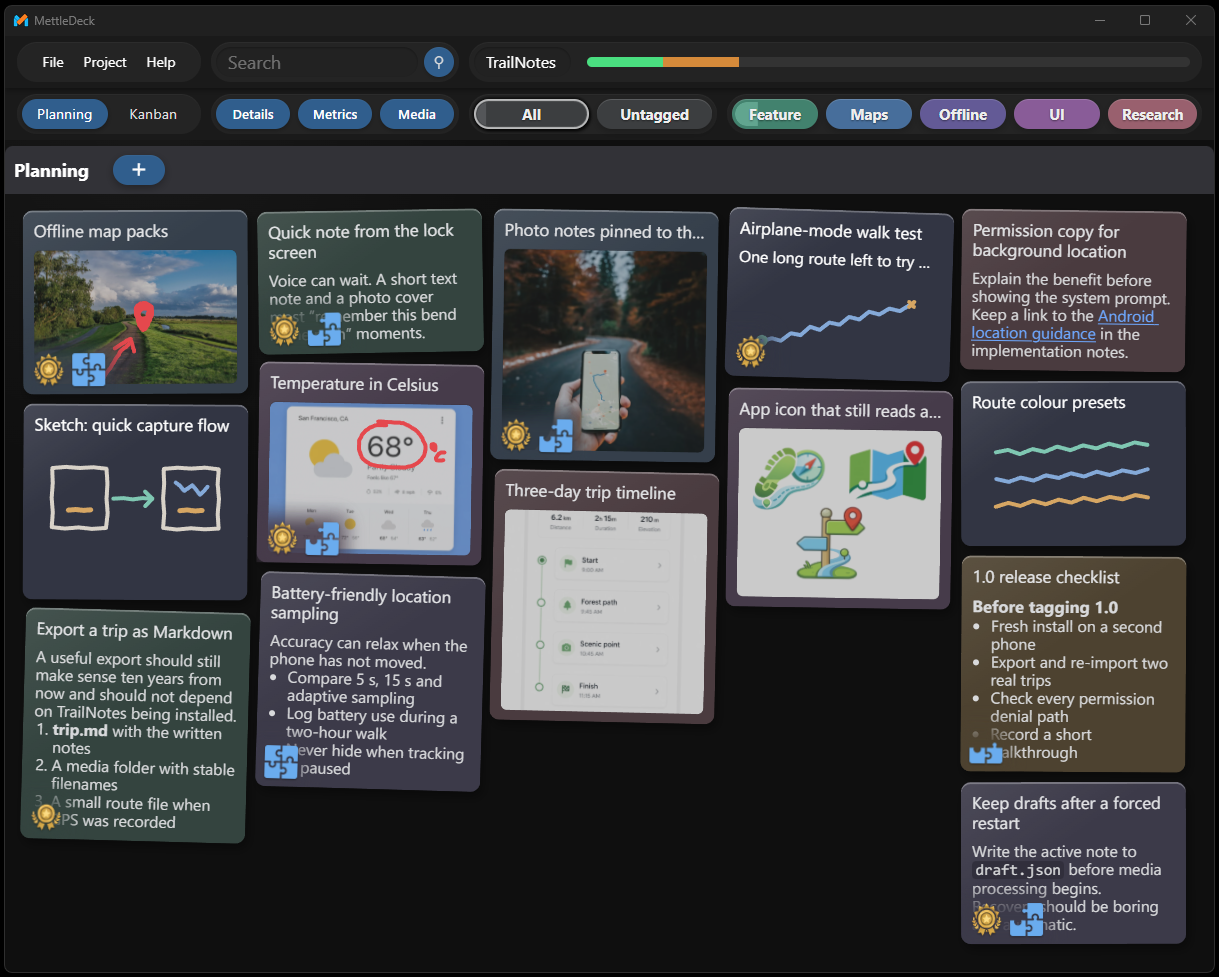
2. Switch Planning and Kanban views
Use the Planning / Kanban control at the upper-left of the board. Planning is focuses on ideation, with larger media views and drawing directly on cards. Kanban is useful once work has a clear next step or status. Cards can move between the two views without losing their content.
3. Add and edit a card
Click "add" (or press Alt+C) to add a card in the current view. The title is selected by default, so you can start typing immediately to edit it. This aims to have a fast, admin-free workflow for creating tasks/ideas.
Edit cards by clicking directly on the title or description in-place.
4. Arrange the work
Drag Planning cards between the five lanes to create a rough visual order. On Kanban, drag cards within a column to change priority or across columns as work moves forward. Columns can be configured in Settings.
5. Add optional details to help organise
On card editing of Impact and difficulty controls to help highlight tasks. Tags help categorise tasks (editable in Settings). Along with Time and Progress controls.
All metrics are optional and can be disabled in settings.
For detailed edits, Right-click a card and choose Edit to open Card Details. For rich text, attachments and media. Right-click also provides Duplicate, media and delete actions.
6. Work with media and drawings
On planning cards, click the Edit Canvas bottom-right button to bring up the media controls. Draw directly on a card, or add images and videos. Annotate images as an easier way to visually show features or bugs.
7. Focus the board
Click All, Untagged or a tag to filter cards. Drag a tag button onto a card to add or remove it; right-click and drag the tag row to scroll it. The search box finds text in titles and descriptions. Details, Metrics and Media independently hide those layers without deleting anything.
8. Keep a portable copy
Choose File > Export Project to create a .deck bundle containing all the project data and its locally stored assets. This portable bundle can be checked in with your Github project to give visibility of what's done and what's next.
Keep exports as backups, share them, or store them beside the files for the project.
Keyboard shortcuts
For now this app is donation-ware.
I hope you find this tool useful.