Audamux Documentation
V1.4.4

V1.4.4
Audamux is a configurable audio router for Windows with a flexible matrix.
Two routing modes for best efficiency or compatibility:
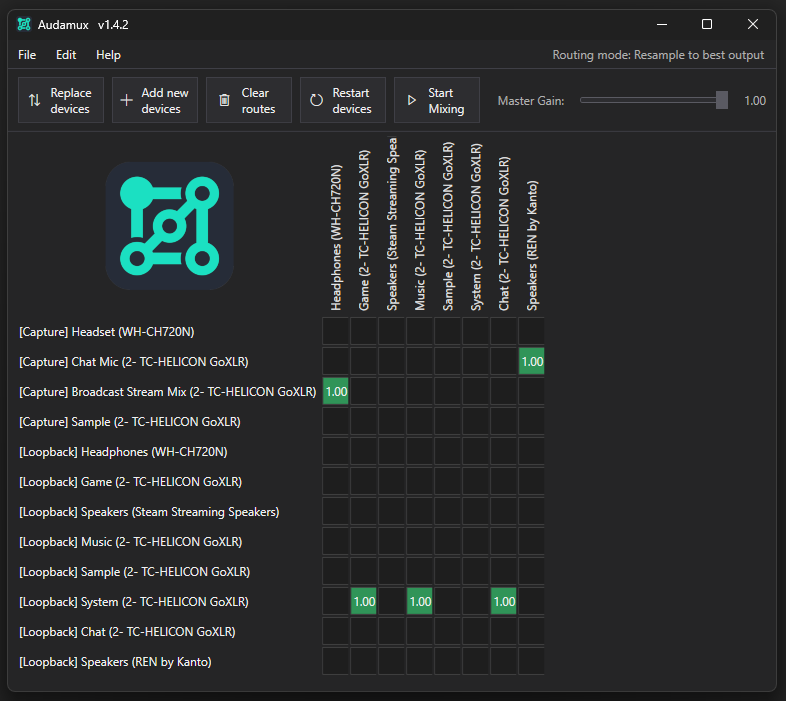
On the main window, you will see a grid of inputs and outputs.
By default, inputs are on the left, outputs at the top (this can be changed in settings).
On first start-up, the inputs and outputs shown are the ones currently visible to the system. After this, they are saved and can be modified to handle tracking devices that disconnect and reconnect.
By clicking on any grid cell, a route is made between that input and output. The cell will turn green and a value (1.0) will appear in the cell.
The value is the gain that is applied to this specific route. It can be set by clicking on the cell and dragging left and right. EG. a value of 0.5 will halve the volume (or more specifically the waveforms amplitude). Note this is a simple volume adjustment, which is multiplied to the audio, it is not in dB.
The default value of 1.0 can be changed in the settings.
Other main controls include:
Top row buttons:
Master gain: Applied on top of all other gains to the final outputs.
There are two routing engine modes to favour efficiency or compatibility.
This is as input and outputs may all have different available quality formats they support, we want to make sure we use the best possible.
Efficiency: “Global target format”
Compatibility: “Resample to best output”
Recommendation:
On first start, the inputs and outputs shown are the ones currently visible to the system.
The device list won’t change unless you request it to. This is important as the matrix must represent devices that are sometimes not connected in order to handle auto-reconnecting.
To change the inputs/outputs:
If you want to add a device that wasn’t connected on first start-up:
You can now add routes for the new device(s)
If you want the system to replace the entire matrix based on the current connected devices:
Types of input:
Capture inputs (“normal” inputs)
Loopback inputs
Common use-cases:
Notes:
A key feature is to be able to auto-reattach devices.
The main use-case are devices that are turned off like Bluetooth headphones / headsets.
For any appearing device, the engine tries to match it to one of the devices in the grid (see Device Auto-reacquire in settings for how this is applied). If in the grid, the device will wake up and routing will continue automatically.
This setting is on by default but can be modified in settings.
Audamux keeps two configurations stored in AppData (note; Nothing is stored on the cloud!).
Whenever a modification is made to any of the above, the internal configs are updated so if the app is closed and restarted, it will continue.
You can also save and load the matrix settings to/from a file.
Audio meters will appear on:
Note: This is not to be used as an “accurate” volume measurement. It is an efficient calculation purely to help visually see activity and to help set-up the matrix.
Rate matching is a feature that prevents long-running “drift” where some outputs slowly build up more and more buffered audio (increasing latency over time).
By default the system handles:
Priming prevents the rate matcher from “overreacting” right after startup/restart.
More detail about how to adjust Latency Management settings in the Settings section.
Start Audamux with Windows
Minimise to tray on close
Auto reattach devices when they return:
Match Unrecognised devices by name:
Routing engine
Global target format or Resample to best output
Buffer settings control latency vs. glitch-resistance. Lower values reduce latency but may introduce audio clicks on some devices. Higher values ensure there are no audio clicks but increase latency.
WASAPI buffer (ms)
Route buffer (ms)
It is recommended not to adjust these settings unless you have audio issues.
See the Latency Management section for more info.
Rate Matching keeps buffers stable over long periods without letting latency grow.
It is recommended to not change the default settings unless you experience any latency or audio glitch.
If you do need to change these settings:
Enable rate matching
Target buffer (ms)
Max ratio change
This is a feature for cases where buffering suddenly becomes huge (e.g., a device stalls, alt-tabbing into something that causes audio disruption).
Enable backlog trim
Backlog threshold (ms)
Adjust settings if you hear pitch changes, warble, or instability right after starting routing, restarting devices or reconnecting a device.
Prime routes on start
Priming ratio
Rotated matrix
The Buffer graph is a live “health monitor” for each output device (headphones, speakers, etc).
How to open
How to use
What the graphs show
Buffer (top graph):
Ratio (bottom graph):
How to interpret common patterns
The UI will show tooltips when you hover over parts of it.
Inputs and outputs text will be:
Note: "Replace devices" resets the device list to currently connected devices (so missing/disconnected devices won’t remain listed after this). If you do want to re-add these, connect the devices and click "Add new devices".
For now this app is donation-ware.
I hope you find this tool useful.